(Post by A.D. Riddle)

This posting will focus on two ways that Picasa can help you deploy the Pictorial Library of Bible Lands in classroom teaching. (See our first post on “Using PLBL with Picasa” here.)

First, we will show you how to use Albums to create a presentation on-the-fly using photographs that are located in multiple folders. This could be helpful if you are short on time, and the topic you are teaching or studying (such as Paul’s missionary trips) involves places or events across the Pictorial Library. First, browse or search for the photographs(s) that you want to include in your presentation.

When you click once on the photograph, it will be “selected” and two things will happen: a blue frame will appear around the selected image as below,

Left image is selected and has a blue frame.

and a thumbnail of the thumbnail (is there a name for this?) will appear in the lower left window of Picasa, in an area called the selection tray.

Selection tray with three selected images.

You can select more than one image at a time from a single folder using Shift or Control/Command keys. To select photographs from another folder without losing your selections from previous folders, click the “green thumbtack” button to “hold” the items in the selection tray. The red circle will remove items from the selection tray.
Selection tray buttons.
Once you have selected all the photographs you want to use in your presentation, click the “blue book” button for “albums.” It will open a menu that allows you to select an existing “album” or create a new “album” where you want to send the photographs. The images will not actually be moved.

Rather, albums are like “Smart Playlists” (or Dynamic Folders); you can add or delete albums without touching the original images. They allow you to mix-and-match into a single folder a variety of photographs that are located in several folders. All of the images in the selection tray will be “sent” to the album that you choose or create.

Albums button menu.

Albums can be viewed by clicking on “Albums” at the top of the left-side browser.
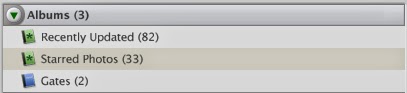
Albums browser with an album for “Gates.” 

With your photographs in an album, you can now arrange the order of the photographs by clicking-and-dragging the thumbnails in the main screen. Once you have the photographs in the sequence you want them, double-click the first photograph to go the “Edit Picture” screen. At the top is a Play button which will begin the slideshow presentation.

Play slideshow button.

Moving the cursor in slideshow view will cause a control bar to appear at the bottom. Here you can rotate a photo, zoom in, exit the slideshow, or make other adjustments.

Slideshow controls.

To return to the main screen from the “Edit Picture” screen, click the “Back to Library” button at top left.

Return to main screen button.

Second, we will show you how to use Picasa to create a Google Earth kmz file of locations containing image thumbnails. The secret to doing this is Geotags. Geotags are location coordinate information contained within the actual photograph. By clicking the blue “information” button in the Show/Hide Panels toolbar at the bottom right of the screen, you can view the photograph metadata. If a photograph is geotagged, the metadata will include a GPS Latitude and GPS latitude.

Show/Hide Panels buttons.

To geotag a photograph, click the red “balloon pin” button on the Show/Hide Panels toolbar. A window will expand on the right which looks just like Google Maps.

Places Panel.

Select the photograph(s) you want to geotag. (You can tag multiple photographs at the same time.)

Next, you need to find the location in the Google map. (Just like with Google Maps, you can switch to satellite view and zoom in/out.) There are a few ways to find the location. You can do this manually by dragging the screen with the cursor and using zoom controls, and then clicking the green “balloon pin” to drop it on the location. You can use the search bar under the map to enter the name of a location. The best method, though, since so many Pictorial Library places are archaeological sites, is to copy/paste the coordinates from the Pictorial Library’s Site Index into the search bar.

Once a photograph is geotagged, the thumbnail in the main screen will have a red “balloon pin” in the lower right corner.

Photograph with red “balloon pin” indicating
it has been geotagged.

To create a Google Earth kmz file, select the geotagged photographs you want to include. Again, you can use the selection tray as described above. For Windows computers only, go to Tools > Geotag > Export. This will create a kmz file from the photographs you selected. The kmz file can be opened in Google Earth or Google Maps, and it will contain yellow “pushpins” with thumbnail images of the photographs which have been geotagged to that location. (The kmz export feature is not available in the Mac version of Picasa. Instructions are here for accomplishing the same task.)

I can imagine this being useful, for example, if one is teaching on the life of Abraham. You can have “pushpins” at Haran, Shechem, Bethel, Hebron, etc. with thumbnails of Pictorial Library photographs. The kmz file can be distributed to students, or it might be used in classroom instruction. Perhaps a teacher might craft an exercise where students have to make a “map” of a biblical account using photos from the Pictorial Library.

This completes our series on “Using Pictorial Library of Bible Lands with Picasa.” Picasa can be a very helpful tool for locating and deploying the wealth of images in the library.

We close with a comment about the limitations of using the Pictorial Library only with Picasa (or similar applications). The photographs of the Pictorial Library come in pre-made PowerPoint presentations which contain the maps, abundant annotations in the Speaker’s Notes (see here and here), helpful labels, and have the photographs arranged in a logical order. Picasa misses out on all these features, so our recommendation is not to bypass the PowerPoints, but use Picasa in conjunction with them.

Share:

A new AP story promotes the claim by Eli Shukrun that he discovered King David’s citadel. For someone familiar with these excavations, the AP account is anything but straightforward. Here’s a simple explanation: Shukrun is identifying the fortifications around the Gihon Spring with the Jebusite fortress of Zion.


What is the Jebusite fortress of Zion? It’s not very clear from the biblical account. Either it is the city as a whole or the king’s palace. Here is the relevant passage from 2 Samuel 5:6-9:

The king and his men marched to Jerusalem to attack the Jebusites, who lived there. The Jebusites said to David, “You will not get in here; even the blind and the lame can ward you off.” They thought, “David cannot get in here.” 7 Nevertheless, David captured the fortress of Zion, the City of David. 8 On that day, David said, “Anyone who conquers the Jebusites will have to use the water shaft [tsinnor] to reach those ‘lame and blind’ who are David’s enemies.” That is why they say, “The ‘blind and lame’ will not enter the palace.” 9 David then took up residence in the fortress and called it the City of David. He built up the area around it, from the supporting terraces inward.

Didn’t Shukrun and Reich excavate this beginning about 15 years ago and concluding about 2 years ago? Yes.


What makes this news? While these fortifications have always been ascribed to the Canaanite inhabitants of Jerusalem from 1800 BC, Shukrun is now making a direct claim that these were protecting the city when David arrived in 1004 BC.


What fortifications did they find? They excavated a massive tower protecting the Gihon Spring, another tower built next to a pool (see photo in the story), and a parallel set of walls leading up the hill.


Is this the same thing as Warren’s Shaft? Not quite. It’s the same idea—David’s men entered the city through a subterranean tunnel—but they believe that the vertical portion of Warren’s Shaft was not known until after the time of David. Instead, Shukrun believes that David’s men came via another section of the multi-part water system.


What does Shukrun’s partner Ronny Reich think? He is more hesitant to apply the biblical name, in part because of the lack of tenth-century pottery found in the excavations. But the walls didn’t disappear for a few centuries and then re-appear, so he suspects that the tenth-century pottery was removed by later inhabitants.


Do you agree? Yes and no. First, I find it quite reasonable that the water system and defensive towers were in use when David arrived. It seems likely that the tsinnor that Joab entered the city through is part of this complex. Second, the water system should not be equated with David’s palace. It’s not clear to me that this is what the article is saying, but the lack of clarity creates confusion. Shukrun is not saying that he found David’s home; he is claiming that he discovered a portion of the city that David conquered. That’s not news and it’s only controversial for those who don’t believe the biblical account of David’s conquest is accurate.


What is behind this recent announcement? The article claims that the visitor center only opened last month. I’m not sure what that means, since the site has been open continuously for the last 15 years, but it may explain why the news reporter chose to do the story. Shukrun is now working as a lecturer and tour guide and free publicity is always good. (If your group is looking for an extra special thing to do in Jerusalem, I would certainly recommend hiring Shukrun to guide you around the City of David.)


What’s the best book to read on the subject? Ronny Reich’s Excavating the City of David is excellent.

City of David Pool Tower with reconstruction, tb031614835
Pool Tower excavations with superimposed reconstruction
Share:
(Post by A.D. Riddle)

In a previous post, we made mention of the 17,683 photographs that comprise the Pictorial Library of Bible Lands (PLBL). That is a lot of photographs! And it is a lot of places! To help the user find what they are looking for and to navigate the library, we added some brand-new features such as maps (here and here) and a Site Index, in addition to the already-helpful Image Index, the organization of the library into volumes/regions, and the descriptive filenames for every single photograph.

In this post, we would like to draw attention to a free program named Picasa, by Google. I have found this to be one of the most helpful tools for digging into the hidden corners of the Pictorial Library. Picasa works on both Windows and Mac computers.

Once you download and install Picasa, you can specify what folders you want Picasa to scan (or index). The index database is sort of like an address book—it does not make a duplicate copy of the images, rather it tells Picasa where to go look to find the images. NOTE: Picasa will work best if you have copied the Pictorial Library to your hard drive.

Under the File menu, select “Add Folder to Picasa…” Here you can specify which folders you want Picasa to see (i.e. scan or index) and which ones you want Picasa to ignore. The window looks like this:

 Folder Manager window.

Once you have selected the folders you want Picasa to scan, it will begin to index the files. This could take quite some time since the Pictorial Library has lots of images, but Picasa has only to do it once.

In the lower right corner of your screen, a slide-out window like this will appear to notify you that Picasa is indexing the images:

Indexing slide-out window.
When Picasa has indexed the Pictorial Library, the main screen will look something like this:

On the left side, you see a tree diagram of all the folders Picasa has scanned/indexed, and in the main window, you see thumbnails of the photographs in the selected folder. Try double-clicking on one of the image thumbnails. (Once you do, a button will appear in the upper left corner with a blue arrow and the words “Back to Library.”)

At this stage, we can point out the first two benefits of using the Pictorial Library of Bible Lands with Picasa. First, you can quickly browse thumbnails of all the photographs in the entire Pictorial Library. Images will catch your eye that you may not have ever noticed before, or you may find yourself discovering whole portions of the library that were unknown. 

Second, in the top right of the Picasa window is a search bar. Thankfully, every single photograph in the Pictorial Library has been given a descriptive filename. When you type in places or other terms, the search engine will look for image filenames and folder names to isolate the relevant photographs—all at Google speed! You can search for a placename, a type of construction (e.g. gate), an object (e.g. lamp), an event (e.g. winnow), and so forth. The search bar looks like this:

Search bar.

Here are the search results for “gate.” You can see on the left side which volumes and folders have images of gates, and in the main window, you can scroll through the thumbnails.

We will discuss one other feature of Picasa in this post. When you search for a name or term in Picasa, the program is not only looking at filenames and folder names, but also “tags.” In a previous post about the Pictorial Library‘s Site Index, we highlighted that index’s usefulness because it allows you to find alternate names for a site that might not have been used in the image filename. The example we used was Ptolemais (Acts 21:7), which does not appear in the image filenames (Acco does instead). Well, all of the names from the Site Index have been added to the photographs as tags, so that in Picasa, you can perform a search for Ptolemais (or Akko or Acre or any of the other names or spellings) and all the photographs of Acco will appear. This makes it quick and easy to find places, even if you are using a different name or spelling!

In the lower right corner there is a row of four buttons that looks like this:

Show/Hide Panel buttons.

The third button has a cream-colored “shipping tag” icon. Clicking on it will reveal all the tags that have been added to a photograph. The Acco photographs have been given the following tags:

Tags panel.

Of course, Picasa is not the only program that can be used to browse and search the Pictorial Library.
Other such programs include Adobe Photoshop Lightroom, iPhoto (for Mac), and ACDSee Pro, as well as perhaps some lesser-known ones such as ShotWell, XnViewFastStone Image Viewer. And there are others.

In a future post, we will highlight two more features of Picasa that make it such an excellent tool for use with the Pictorial Library of Bible Lands. Of course, there is so much more that can be done with Picasa, but we leave that for you to explore and discover.

[Click here for Part 2]

Share:
(Post by A.D. Riddle)

On Wednesday, May 7, at 7:00pm, Karen Radner will give a lecture entitled “Brain Drain: Foreign Experts in the Heartland of the Assyrian Empire.” The lecture will take place at Guild Lounge, Scott Hall, Northwestern University in Evanston, IL.

A description of the lecture given in March reads as follows:

The Neo-Assyrian Empire (9th–7th century BC) routinely used deportations as a key tool of establishing and maintaining control over its holdings. But deportation was by no means a blanket strategy, as the deported population groups were carefully selected to include craftsmen and specialists. Most of them were relocated in the Assyrian Heartland (today North Iraq) which was developed into the unrivalled economic and cultural centre of the Middle East. My paper which will focus on the “brain drain” experienced by the peripheries of the Assyrian Empire, including regions such as Egypt and Iran.

The lecture is free and open to the public. A reception is to follow. More information is here.

Karen Radner has written a number of essays and articles that are helpful for understanding the history of the Neo-Assyrian period, especially the centuries when Assyria came into direct contact with Israel and Judah. (In fact, the Bible mentions by name all Assyrian kings from Tiglath-pileser III through Ashurbanipal.) Radner was part of the team that created “Assyrian Empire Builders” and many of her articles are available through her Academia.edu page, including

  • “Assyrians and Urartians”
  • “The Assur-Nineveh-Arbela Triangle: Central Assyria in the Neo-Assyrian Period”
  • “After Eltekeh: Royal Hostages from Egypt at the Assyrian Court”
  • “Between a Rock and a Hard Place: Musasir, Kumme, Ukku and Šubria – the Buffer States between Assyria and Urartu”
  • “Assyria and the Medes”

Share:

A bust of Alexander the Great has been discovered in a church on the island of Cyprus.

The recent claim that the Polish Center of Archaeology had found the tomb of Alexander the Great in Alexandria, Egypt, is a hoax.

The new museum in Antioch on the Orontes will open soon with the world’s largest display of mosaics.

The “Roads of Arabia” exhibit is now in Kansas City at the Nelson-Atkins Museum of Art. Until July 6.

The Petrie Museum of Egyptian Archaeology has launched an interactive online 3D object library. Direct link here.

Logos has three new collections available at pre-publication discount for those interested in seals of the biblical world:

The ASOR Weekly Roundup is here.

HT: Jack Sasson, Ted Weis

Share:

I’ll start with my favorite article of the week: a review of recent excavations at the base of the Temple Mount’s Western Wall. You already know about the chisel, but you may not have heard about the smooth stone, the use of mortar, or the exposure of the valley floor. The Israel Hayom article failed to check with expert Leen Ritmeyer, but you can see his reaction on his blog.

Wet sand is the trick for cutting the pulling power in half when dragging pyramid stones across the Egyptian desert.

One chapter at a time, Ferrell Jenkins is taking us through a series in Visualizing Isaiah. This week he arrived at Isaiah 40 and he shares a couple of shepherd illustrations.

Now online: Leen Ritmeyer’s recent lecture, “Does the Byzantine Church at Khirbet el-Maqatir Reflect the Sacred Architecture of the Temple in Jerusalem?”

The Wall Street Journal summarizes events in the last few weeks that have led scholars to recognize the Gospel of Jesus’ Wife as a modern forgery.

The BBC has a video inside the new replica of King Tut’s tomb. Not everyone is pleased.

Share: